First, the thing that trips everyone up: there are two notification pages.
- Your profile page → Notifications is where the settings live. This is the one you want.
- Settings → Notifications is a history — a log of what you've already been sent. Nothing there changes anything.
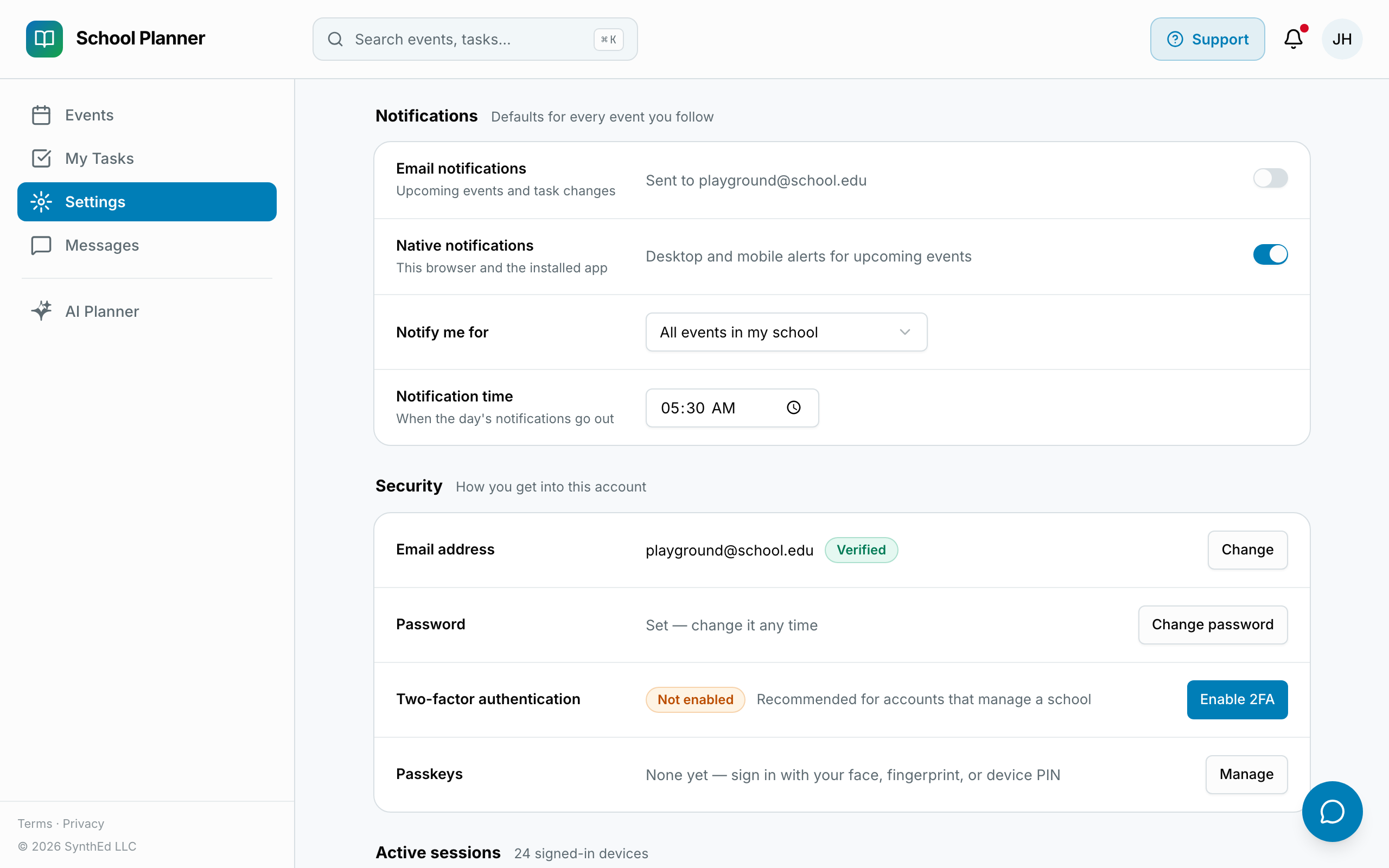
To change your settings, open your profile and find the Notifications section. You control four things:
- Email notifications — on or off.
- Native notifications — pop-up alerts on your phone or computer (works best with the installed app).
- Notify me for — all events in my school, or only events with work assigned to you. If things feel noisy, this is the switch to flip.
- Notification time — when the day's notifications go out.
Two honest footnotes:
- Turning native notifications off also stops chat-message alerts from appearing in the bell. If you use Messages, leave them on.
- Overdue and due-soon reminders exist to keep events from slipping — if a reminder feels wrong, the fix is usually the task's due date, not muting the messenger.
Example: a PE teacher only wants to hear about her own work, so she sets only work assigned to me and moves the digest to 6:30 AM. Her inbox goes from eleven emails a week to two.